
Send your first request
Send a request after the model service, enabled Model ID, and scoped API key are ready. A generated example is a starting point; the HTTP response and Request history entry are the observable result.
Before you begin
Have the Stravia client endpoint, exact Model ID, and an active API key authorized for that model. Keep the Server or Desktop service running and ensure the client machine can reach the endpoint. The configured upstream model service may bill the request.
Keep the API key private. Do not expose a first-run Server to an untrusted network. For a remote Server, use its approved HTTPS client endpoint and deployment-specific network controls.
Send a request
The example below uses PowerShell and the OpenAI-compatible Chat Completions endpoint. Replace the placeholder key and model with your own values:
$headers = @{ Authorization = "Bearer YOUR_STRAVIA_API_KEY" }
$body = '{"model":"my-model","messages":[{"role":"user","content":"Say hello."}]}'
Invoke-RestMethod -Uri "http://127.0.0.1:23471/v1/chat/completions" -Method Post -Headers $headers -ContentType "application/json" -Body $bodyRun it on a machine that can reach Stravia. For a remote Server, replace the loopback address with the approved HTTPS client endpoint. Do not add a provider credential to the client request; Stravia uses the upstream connection configured for the Model ID.
Verify the response and record
- Confirm the response contains an assistant message under
choices. - In Request history, refresh the current time range and find the interaction for the exact Model ID.
- Open it to inspect its status and any available input, output, and upstream-reported usage.
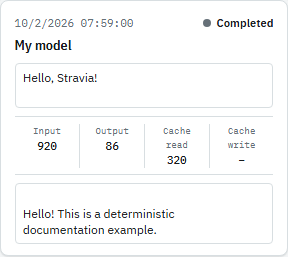
Some usage values may be absent or unavailable. A dash is not zero and should not be treated as a precise bill.
If the request fails
Check the endpoint and API format, then verify that the model and at least one destination are enabled. Confirm the key is active and allowed to call that exact Model ID. Check the model-service connection and inspect Request history for the recorded failure. Correct one failing layer at a time before retrying.
Next steps
For client-specific setup, use Connect clients . For request details and failure evidence, see Request history .