
Models and routing
A Stravia model defines the name a client requests and the destinations available to serve it. Each destination maps to a model service and upstream model; the client-facing Model ID does not have to match an upstream model's identifier. Multiple targets per route enable priority-based selection and failover.
Prerequisites
Connect and enable a model service, synchronize its model inventory, and confirm the upstream model you plan to route is available. You also need management access to create or edit a Stravia model.
Understand routing and failover
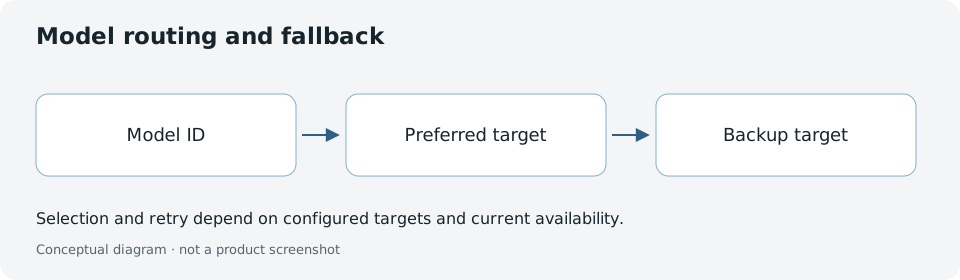
The gateway routes requests based on target priority, enabled state, and conversation context:
- Priority: Targets are ranked by priority value (higher values are preferred). Only enabled targets are considered for selection.
- Session affinity: For supported conversation/cache affinity identifiers, an eligible session target may be preferred over higher-priority targets not yet tried.
- Retry: Eligible transient failures retry the same target within its retry budget before attempting the next-highest-priority target. Quota-exceeded failures may advance directly when failover is permitted.
- Failover stop conditions: Once a client-visible response is sent or a non-failover error occurs, retries stop. Failover does not continue after these events.
- Cooldown: A target enters cooldown when failures exceed its retry budget or a half-open probe fails. New requests skip it; once cooldown expires, one probe is permitted.
- Timeout: First-token timeout controls how long to wait for the upstream service to send data.
Whether a request can switch targets depends on the route's configuration and runtime status; do not assume every route will automatically failover.
Create a callable Model ID
- Go to Model Services and synchronize or connect a model service.
- In Models, create a new model and enter the exact Model ID clients will request.
- Add at least one enabled target pointing to an enabled model service and an available upstream model.
- Save and verify the model appears in the list.
Stravia will suggest the selected service/model when creating targets. A synchronized catalog record by itself is not a callable model; you must explicitly add it as a target in a route.
Configure targets and priorities
Add targets
Click Add target in the model editor. Each target requires:
- Provider/Model: Select an enabled service and an available upstream model.
- Enabled: Toggle to include or exclude this target from selection.
- Priority: Set a numeric priority (higher = preferred). Use gaps (e.g., 100, 50, 0) to group targets or prepare for future additions.
Adjust priority and retry behavior
For each target, configure:
- Priority: Determines selection order. Higher-priority enabled targets are preferred over lower-priority targets. If a session target is eligible, it may take precedence over untried higher-priority targets. Negative and very large values (up to 2,147,483,647) are allowed.
- Target Retry Budget: Number of retries allowed on the same target for eligible transient failures (default 5). After the budget is exhausted, selection can move to the next-highest-priority target; committed client output or a non-failover error stops retries.
- Target Cooldown: Duration in seconds a target remains in cooldown after failures exceed its retry budget or a half-open probe fails (default 120 seconds). Once cooldown expires, one additional probe is permitted.
- First Token Timeout: Duration in seconds to wait for the first response token (default 60 seconds).
Manage targets
- Reorder: Drag targets to group by priority or reorganize.
- Edit: Click a target to adjust its settings or change the upstream model.
- Delete: Disable the target first (toggle Enabled off), then delete it. The UI does not allow deletion of the last remaining enabled target without first disabling it.
- Check status: From the model list, view Target status to see which targets are eligible for scheduling or excluded, for example because they are disabled, have invalid credentials, or are in cooldown. Available indicates scheduling eligibility, not a connectivity check.
Session behavior and model mapping
For supported conversation/cache affinity identifiers supplied by a client:
- Stravia selects an enabled target, preferring an eligible session target for a supported affinity identifier.
- Subsequent requests carrying the same supported affinity identifier attempt to use the same target if it remains eligible.
- If the session target fails repeatedly or enters cooldown, Stravia may select another enabled target.
The route Thinking level mapping (if using extended thinking models) allows different targets to support different thinking levels. If a request specifies a thinking level, Stravia verifies the selected target can support it; otherwise, failover may occur.
Model selection strategy
The route's Balance strategy controls how multiple enabled targets with the same priority are selected:
- Traffic equalization: Balances load across equally-prioritized targets based on weighted traffic history over 24 hours, including in-flight requests. It does not guarantee equal request distribution.
- Latency preference: Prefers targets with lower recent observed latency, provided they have sufficient recent samples to make a reliable comparison.
Verify and troubleshoot
Find the exact Model ID in Models and check its enabled state. Click it to view:
- Target list: All configured targets, their priority, enabled state, and current status.
- Target status: Whether each target is eligible for scheduling or excluded. Available is not a live upstream connectivity result.
- Selection strategy: How multiple targets at the same priority are balanced.
If a client cannot call a model:
- Confirm the exact model ID matches the client's request.
- Verify the model is enabled.
- Check that at least one target is enabled and the target's service is available.
- Verify your API Key permits the model (see API keys ).
For a failed request, check Request history to see which target was selected and why it failed.
Save and apply changes
After editing targets or priorities, click Save. The system applies the new configuration; in-flight requests continue with their selected targets. New requests use the updated route configuration.
If you cannot save due to validation errors (e.g., no enabled targets), the error message indicates the issue. Correct it and try again.
Next steps
Grant access to the Model ID in API keys . For request diagnostics see Request history . To connect clients, use Connect clients .