
Media generation
Media generation configures Stravia to use an eligible upstream image-generation capability. It is separate from ordinary chat-model routing and does not guarantee that the provider account can generate every requested image.
Prerequisites
Choose an upstream service and route whose Vendor/model capabilities support image generation. The relevant route and destination must be saved and enabled. Generation requests can consume provider quota or incur charges; retries may create additional upstream work.
Configure the generation path
- Open Media generation.
- Select an eligible image-generation route and save the configuration.
- Enable the feature after the saved configuration is valid.
- Send a supported image-generation request and inspect its result and history.
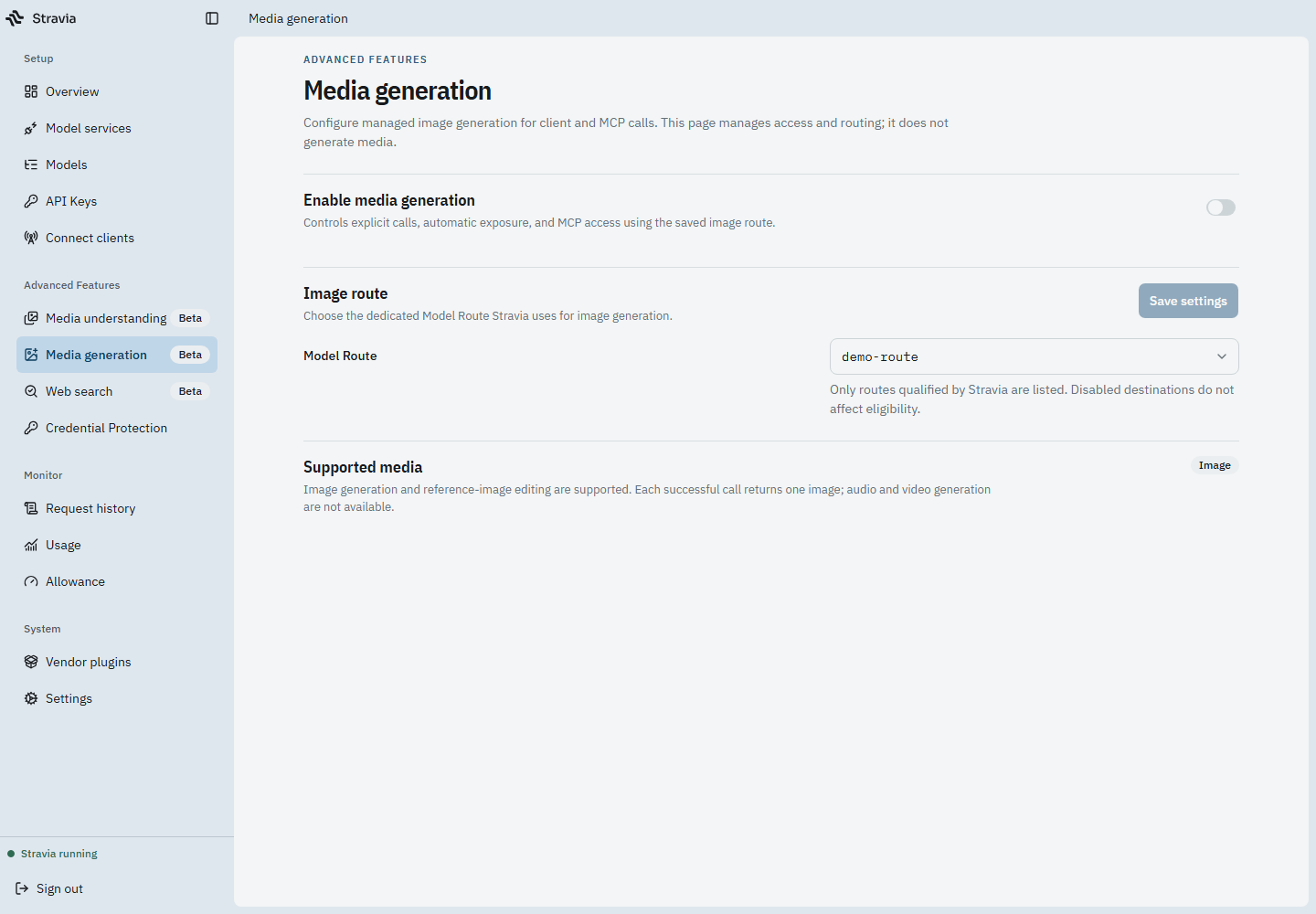
Every enabled target for the selected route must support the required image capability. Stravia's current capability is image generation and reference-image editing; it does not establish audio or video generation. The upstream may not return an image with exactly the requested size.
Verify results and troubleshoot failures
Check that the selected route was saved, the feature is enabled, and every enabled destination on that route supports image generation. If generation fails, inspect the request result and upstream response, then check account entitlements and the provider's current capabilities.
Next steps
For supported image input in other model requests, see Media understanding .