
Desktop
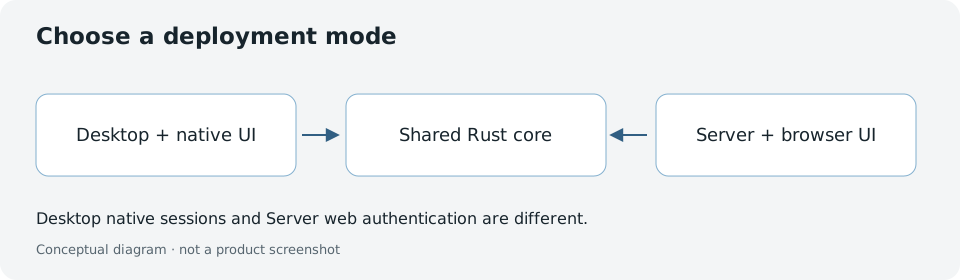
Stravia Desktop is a local Tauri application with an integrated management interface. Use it when Stravia and its management UI should run on the same computer; it uses a native local session rather than Server's setup-token flow.
Before installing
Select a Desktop installer that matches the target operating system and architecture on the current release page . The v0.3.1 release observed on 2026-10-02 listed Windows installers and Linux AppImages, but no macOS assets; confirm the current assets rather than assuming platform availability.
Install and open Desktop
- Download the matching Desktop release asset.
- Verify its SHA-256 against the
SHA256SUMSfile published for that release. - Run the installer or open the matching package according to its platform.
- Start Stravia Desktop and open the integrated management interface.
The Desktop sign-in is a native local session. Do not look for Server's one-time setup token or create a Server administrator as part of this flow.
Confirm local access
Confirm that the integrated UI opens and remains signed in under the Desktop session. Before connecting a provider, keep upstream credentials private and consider where local data, diagnostics, and configured client files are stored.
Troubleshoot if Desktop does not start
Use the application's visible recovery or diagnostics path and retain the existing application data. Do not delete or reset data as a generic repair step. Do not use Server's recover-admin command for the Desktop native session.
Next steps
Follow First setup and then Quick start . For the standalone service path, see Server binary or Docker .